
User guide
- Right-click your companion for almost everything: breaks, water, walking, focus sessions, timers, calm practices.
- The Control Center (right-click > Open Control Center) shows your day, lets you change your companion and has all settings.
- Lost your companion? Open Lumling again from the Start menu; it comes back.
Getting started
Pick your buddy
The first time Lumling opens, choose a companion, give it a name and click Meet. It appears near the bottom of your screen. You can change your companion or its name any time in the Control Center.
Move it where you like
Drag your companion anywhere on your screen. Wherever you put it becomes its home: it takes its little walks near there.
The two places to find things
- Right-click your companion: a menu with each feature (Wellness, Walk, Focus Buddy, Simple Timer and more) and Help & guide.
- The Control Center: right-click your companion > Open Control Center, or open Lumling from the Start menu while it is running.
Lumling also has a small icon in the system tray, the row of icons next to the clock at the bottom-right of Windows (click the ^ arrow if you do not see it). Right-click it to show or hide your companion, report a problem or quit.
What do you want to do?
Pick one, or scroll down for every detail.
- Make my buddy walk. It crosses your screen and back. Right-click your buddy > Walk > Start walking.
- Set daily goals. Pick daily goals. Your buddy reminds you and counts your streaks. Control Center > Goals, or tray icon > Goals....
- Set a 5 minute timer. A countdown shows next to your buddy. Right-click your buddy > Simple Timer.
- Help me focus. Work in focused sessions with short breaks. Right-click your buddy > Focus Buddy > Start focus session….
- Log a glass of water. Your buddy keeps count for today. Right-click your buddy > Wellness > I drank water.
- See how my day went. A small card sums up your day. Right-click your buddy > Wellness > Show my day report.
- Help me calm down. A guided breathing practice. Right-click your buddy > Anxiety Aid Tools.
- Change my buddy. Pick, rename or install another buddy. Control Center > Buddies.
- Turn features on or off. Switch each feature on or off. Control Center > Features.
- Change settings. Size, sounds, and hiding in meetings. Control Center > Settings.
- Chat with my buddy. Ask your buddy things. Needs a one-time setup. Control Center > Assistant.
- Find my icon by the clock. See where Lumling lives on your taskbar. The ^ arrow next to the clock.
Where is the tray?
The tray is the row of small icons next to the clock. Lumling lives there even when your buddy is hidden.
- Find the little arrow. At the right end of the taskbar, next to the clock, click the small ^ arrow.
- Spot the Lumling icon. A small window opens with your hidden icons. Look for the Lumling face.
- Right-click it. Right-click the Lumling icon to open its menu.
Drag the Lumling icon out of the little window onto the taskbar to keep it always visible.
- Show buddy / Hide buddy: Brings your buddy back, or sends it away.
- Hide buddy for…: Hides your buddy for 15 minutes, 1 hour, until tomorrow, or until you bring it back.
- Pause All Buddies: Keeps every buddy still until you resume.
- Control Center…: Opens the big window with buddies, settings and features.
- Features…: Turn features on or off and change how they work.
- Quit Lumling: Closes Lumling completely.
Your buddy
- Drag: Move your buddy anywhere. That spot becomes its home.
- Double-click: Your buddy says something friendly and waves.
- Right-click: Opens the menu below.
Right-click your buddy to see:
- Cheer me up: A joke, a tip or a kind word, whichever you need.
- Anxiety Aid Tools: Breathing, muscle relaxation, grounding and guided meditation.
- Focus Buddy: Work in focused sessions with short breaks in between.
- Quick Reminders: One-time reminders and daily ones, like Log in or Log out.
- Simple Timer: A countdown timer with a pause button.
- Walk: Start walking, follow your mouse, or stay put.
- Wellness: Water, stretch, eye and posture reminders, plus today's progress.
- Features…: Turn features on or off and change how they work.
- Open Control Center: Buddies, settings and features in one window.
- Help & guide: This page.
- Size: Make your buddy smaller or bigger.
- Hide buddy: Sends your buddy away. Bring it back from the tray.
What your buddy can do
Walk
Your buddy strolls around your screen. Right-click your buddy > Walk.
- Start walking: your buddy crosses the whole screen and back, then settles down.
- Follow my mouse: your buddy trails your pointer, even onto a second monitor.
- Stay here: your buddy stays where it is.
Calm by default · Stands still during reminders · Pauses while you are away. Settings: Control Center > Features > Walk.
Wellness
Gentle nudges to drink water, move and rest your eyes. Right-click your buddy > Wellness.
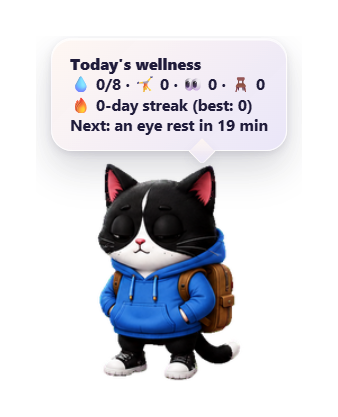
- Your buddy reminds you through the day. Tap Done when you have.
- I drank water: log a glass yourself.
- Today's wellness: see how your day is going.
- Pause wellness for 1 hour: quiet time when you need it.
- End-of-day report: at 6 pm a small card shows your day. Change the time or switch it off in Features > Wellness.
Waits while you are in a meeting or away · Streaks and a 7-day chart in Control Center · Your progress is saved on your PC · Shows only if you did something. Settings: Control Center > Features > Wellness.
Quick Reminders
Remind me once, and keep daily goals with streaks. Right-click your buddy > Quick Reminders.
- Set reminder…: pick medicine, a meeting or your own note, then when.
- Add daily goal…: what, which days, morning / afternoon / evening, and an optional reminder time. Or use Control Center > Goals.
- Today's goals sit in this menu: click one to tick it. Done on a goal's reminder ticks it too, and your buddy celebrates.
- Each goal keeps a streak. Forgot to tick yesterday? Goals shows "Did these yesterday?" so the streak still counts.
- Closed Lumling at reminder time? A goal reminder missed under 30 minutes ago still shows when you open it.
Up to 12 goals; pause, edit or delete them on the Goals page · Snooze 5 minutes from the alert · Water, stretch and eyes live in Wellness. Settings: Control Center > Features > Quick Reminders.
Simple Timer
Count down, with a buddy to tell you when time is up. Right-click your buddy > Simple Timer.
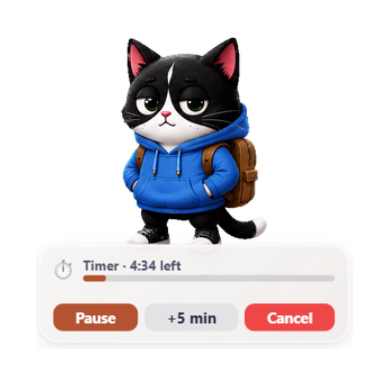
- Pick 5, 15, 25, 30 or 60 minutes, or Start timer… for your own.
- Pause, resume, add 5 minutes or cancel while it runs.
Shows the time left next to your buddy. Settings: Control Center > Features > Simple Timer.
Focus Buddy
Work in focused sessions with short breaks. Right-click your buddy > Focus Buddy.
- Start focus session…: choose how long to focus.
- A break comes next. Skip it or end the session any time.
The classic Pomodoro rhythm. Settings: Control Center > Features > Focus Buddy.
Anxiety Aid Tools
Calm practices when things feel like too much. Right-click your buddy > Anxiety Aid Tools.
- Breathing, muscle relaxation, grounding, guided meditation and visualization.
- Each practice has its own pause and stop buttons.
Works any time · Runs on your PC. Settings: Control Center > Features > Anxiety Aid Tools.
Buddies
Pick who lives on your desktop. Control Center > Buddies.
- View buddy: see how it moves.
- Install: add a buddy to your collection.
- Default: make it the buddy on your desktop.
- The pencil next to its name on the Dashboard renames it.
Switch any time. Settings: Control Center > Buddies.
Features page
Switch each feature on or off. Control Center > Features.
- Tick a feature to switch it on, untick to switch it off.
- Configure opens that feature's own options.
A feature you switch off does not run. Settings: Control Center > Features.
Settings
Make your buddy fit the way you work. Control Center > Settings.
- General: language and light or dark.
- Buddy Behavior: when your buddy steps aside (fullscreen, calls, screenshots) and how it moves.
- Chat & Voice: how you talk to your buddy.
Changes save straight away. Settings: Control Center > Settings.
Assistant
Chat with your buddy, using your own AI. Control Center > Assistant.
- Personality: shape how your buddy talks to you.
- Providers: connect an AI service. Chat and voice need one.
- Conversation archive: look back at past chats.
Optional · You choose the AI provider. Settings: Control Center > Assistant.
Your day at a glance
Control Center > Dashboard shows today's water, stretches, eye rests and your water streak, with the last seven days. A streak grows each day you meet your water goal.
Good to know
- Steps aside in calls: Your buddy hides while you are on a call or sharing your screen, and returns afterwards. Reminders wait.
- Steps aside in fullscreen: Videos, games and presentations get the whole screen. Your buddy comes back when they end.
- Not in screenshots: Your buddy stays out of screenshots and screen recordings. Switch this off in Settings > General.
- Private: Your progress and reminders are saved on your PC.
Chat (optional)
You can talk with your companion: right-click > Talk to your pet. Chat needs an account with an AI provider (for example OpenAI or Anthropic); add your key in Control Center > Assistant. Everything else in Lumling works without it.
Settings
- Light or dark: the sun/moon button at the top of the Control Center.
- Start with Windows: Control Center > Settings. If you installed from the Microsoft Store, switch it in Windows Settings > Apps > Startup.
- Updates install by themselves (from the Microsoft Store, or for the website installer, when you restart Lumling).
- Share an anonymous daily summary is off unless you switch it on; see the privacy policy.
Something's not right
My companion disappeared
Open Lumling from the Start menu again, or click the tray icon > Show pet. It may also be hiding because a full-screen app or a call is active.
It doesn't walk
Right-click > Walk > Start walking. If you chose Stay here, pick another walk.
No reminders come
Check that Wellness is not paused (right-click > Wellness > Resume wellness) and that the reminder is switched on in Control Center > Features > Wellness. Reminders also wait while you are away.
Two Lumlings, or it won't open
Only one Lumling can run at a time. Install it either from the Microsoft Store or from the website, not both. Quit from the tray icon > Quit Lumling, then open it again.
Still stuck?
Right-click the tray icon > Report a problem…, or write to [email protected]. We read everything.
Also readPrivacy policy →